Pages

Showing posts with label Google Docs. Show all posts

Thursday, August 18, 2011

Google Docs for graphic organizers

One of the central goals I have each year is to teach my students to articulate themselves well.  They need to be able to form cohesive, well-supported arguments as they draft their responses.  A critical part of this is the graphic organizer - getting them to plan their work, test each part of a paragraph to make sure it supports a central point, before they type it up.

My vehicle for teaching this is the Essay Map:


Students learn the acronyms, and then create their own version of the map to help internalize how the parts all fit together.  Then, when we get to a writing assessment, they are given graphic organizers that look like the images on the slide.

Up until last year, these organizers were strictly on paper.
Here is what my paper organizer for a paragraph looked like:

This worked fairly well, but it did have some limitations:
  • Students would often be crowding information into the boxes - especially kids with large, "poofy" handwriting (the sort that can fit little faces inside the dots over their "i's")
  • It became messy, as items were crossed out or adjusted based on suggestions - an arrow to indicate one idea needed to come before another one, etc.
  • Those who had either more or less examples than the number of boxes felt locked in, or pressured to have a regimental number of points in each paragraph.
  • Fitting everything on the organizer meant there was room for just the boxes, not any real guidelines.
So, during the second major unit last year, I decided to try out using Google Docs to create a digital organizer.  I started by uploading the original doc, and converting it into Google Docs editable format.  Once it was in there, I was freed from the constraints of the 8 1/2 x 11 sheet of paper - I could add in more specific instructions and reminders for my students as they filled in the boxes, giving them more direct instruction in the organizer itself.
The online version looks like this:


This new format worked well - by changing the share setting from private to 'anyone with the link' and making sure no one else could edit it, I enabled my students to create their own copies for their use.  I took a few minutes in class to walk them through the process - go to the link on our discussion board, make sure you're logged in to your Google Docs account, and then click 'make a copy.'  Rename it with your period, name, and the assignment, then share it with me.  I then walked them through some basics - how to add in more boxes if you need them, how to delete ones you don't need, etc.

Students were now able to organize their papers online. The new format gave them more guidelines, and was adaptive to their needs - as they filled in a box, it became larger as they typed - no more squeezing information into a set size.  They could add, remove, or move items without the organizer becoming cluttered... and it has these added benefits:
  • I can pop in and give feedback at any time - in the sidebar, or the document itself.
  • Student work is always saved, always accessible - no lost papers
  • Through the revision history, I can monitor how much time someone is spending on the organizer, and offer feedback accordingly.
  • Once the student is done organizing, they can take the raw material and copy it into a new document, to convert into a full draft - no more writing things out twice.
  • At the end of a unit, I have sample organizers and drafts, to help teach other students the writing process.
This works well for me -- I would love to hear how others are approaching online organizing.

    Thursday, August 11, 2011

    Google Docs for group classwork

    On my team, we use Google Docs for a lot of our "paperwork" - each student sets up an account at the start of the year, and each teacher on team also has a Google Docs account (our school has also partnered with Google, so that we have our own 'channel' on google docs).

    I've already discussed one way we use GD on team - students do their organizing and drafting of papers right online, streamlining the writing / editing process while saving a ton of paper (with school budgets being what they are, every dime counts!).

    Beyond this, we do a number of collaborative tasks - both among the staff and the students  - through GD as well.  Our team newsletters, sent out at least monthly, used to be constructed via a chain of emails - each teacher would send me their snippet, I'd then merge them into a doc, and then send it out.  Now, we keep a newsletter "shell" and just fill it in by a set time / date - each of us adding our blurb when we have the time - and then, once it's set, I email it out and post it on our team discussion board.  Much easier.

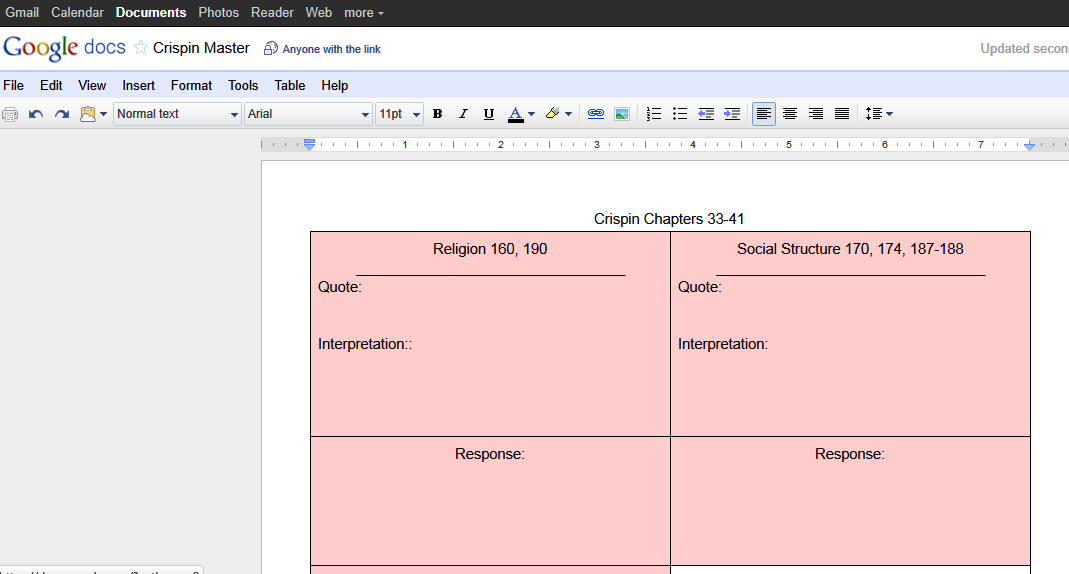
    Last year, I wanted to use GD to facilitate collaborative discussions among the students, as well.  I started with a fairly standard classroom discussion model: while reading Crispin, at set intervals students met in groups to discuss specific chapters.  The kids had been tracking facets of the novel in a series of shell note sheets, and - on discussion days - kids would be put into groups, and each group was given one facet as a focal point.  After a few minutes, they would send one member to the board to write a key quote they found, and their group's analysis of its importance.  We'd then discuss these as a class.

    This format had a few problems.  First, the board would get crowded pretty quickly - as would the space where students stood while writing.  Often, one student would have to wait for another to finish.  Second, the work was transient - by the end of the period, I'd have to erase the work in order to be ready for another class.

    So, this brought me to my inquiry - could I figure out a way to use GD to streamline the process and eliminate the bottleneck, while using only a limited amount of computers (we have a laptop cart on team that, usually, only has around 6 working units).

    Here's what I came up with.  My solution uses 6 laptops and one LCD projector.

    I began by setting up a discussion document that students could access on Google Docs.  I made it public, so anyone could edit it, and posted the link on the class discussion board.  It looked like this:
    scroll over pic to see descriptions of key elements

    Each group was then given a laptop, and I hooked my laptop up to the LCD projector.  I projected the master document onto the wall.

    I then gave each group two slips of paper - the first was the topic they had to post about, the 2nd was the topic posting they'd comment on.


    Groups went to work.  As they decided on the quotes and analysis for their posts, I could see each group typing in real time, as could the rest of the class.  Once a group finished their post, they then read another group's entry and responded to it.  The filled in form, in class, looked like this:

    By the end of the period, we had a full chart - you can see the results here. I then saved the document under a new title - indicating the assignment and the period - and turned off the "anyone can edit" option.  I then went back to the master document, clicked on "revision history," selected the original, blank version, and reverted to it -- I was ready for the next class, had saved all the work the kids did, and it was much faster than erasing the board!

    At the end of the day, I then posted links to all the finished discussion documents on our discussion board:


     This way, students could reference these discussions later - especially when gathering evidence for major assignments.  Also, they could see the key ideas developed in the other classes - something that was impossible on a standard white board.


    Overall, this approach worked out better than I had anticipated.  It had the following benefits over my old way of doing things:
    • It streamlined the sharing process - each group could write 'on the board' at the same time.
    • Whereas before I'd be hard pressed just to get all the initial quotes on the board during a period, I now had time for the students to critique one another.
    • No more handwriting issues on the board - easy to read font.
    • By saving the work in these files, the current students could review their peers' work later, and I could even incorporate the class work into a reflective piece later on (like reviewing the posts for homework, and choosing the strongest analysis).
    • I have exemplars for future students / years.
    • I also found that students became eager to revise their work - on a number of occasions, while one group was critiquing another group's response, I'd see a cursor going back over the original post, trying to improve it before the commenter was even done typing!
    My question, though, is would a blog be as good or better for this sort of work?

    Thursday, July 21, 2011

    Google Docs for Drafting and Editing

    This past year, I transitioned from traditional pen-and-paper peer editing to an online format using Google Docs. This was made possible by having each student set up a Google Docs account at the start of the year, when we sent home a permission form to the parents of each child on my team.  We received 100% support: each form came back, and all kids signed up.

    When it came time to write our first paper, I spent a class period going over how to use Google Docs instead of the traditional Word.  One of the key points I figured out was that I needed a clear system by which students would name their files, and a protocol for sharing them with me.  For naming, I chose a combination of descriptors that I would use all year:  Period, Assignment, First initial and last name - for example, if Milan Kundera were in my period G class, and he created a draft of his essay for Under the Persimmon Tree, his file name would be:  G UTPT Essay M Kundera.  This is critical because, as the year gets rolling, I end up with tons of documents cluttering my Google Docs home screen.  I need a quick way to sort and file them:  I create folders for each period, and then subfolders for each unit / assignment.


     Then, when assignments come in, I can quickly sort by period and assignment, and drop the papers into their proper folders, keeping my home screen cleared.

    So, with naming settled, I shared my email address with the students for sharing purposes, and I was ready to roll, and assignments started coming in.

    One other little trick: I use the 'star feature as a way to check off when I've reviewed someone's draft - that way, I can quickly track which assignments I still need to see.


    I've found that using GD has a number of benefits over the traditional paper form of doing business.  These benefits include:

    • Being able to set deadlines at more flexible times.  For example, I might have one paragraph of a draft due by Friday evening at 9 pm - by that time, students need to share it with me.
    • Being more focused in feedback I give.  One problem I had with collecting drafts was I'd comment on everything.  On GD, I set myself a couple limits: I would post 2-4 comments, focusing on big areas of concern in a document, and I came up with a set list of shorthand comments that I could use, such as a generic "GUM" at the top of a paper if the student needed to work on grammar / usage / mechanics.  I've found that, by giving just a few good comments, students are better able to focus on making improvements and I spend less time marking up papers.
    • I can track student progress when necessary.  For example, through looking at revision history, I can see when a student worked on a document.  This has been helpful in parent discussions, to be able to show that someone either hadn't touched a document in the two weeks prior to a due date or that someone was spending entirely too much time on their work.  Either way, it's a great starting point for a conversation with the student or the parent.
    • I have immediate access to exemplars.  When work comes in, I can flag documents that stand out, copy them into new docs, and remove student names.  On research papers, I've been able to create a 'master bibliography' by merging the works cited from several top students.
    • I can give live support to students who need it.  On occasion, I've seen that a student was actively working on a document while I was online - I am able to access the document and discuss the work with the student.  Often, it's a quick "How's everything going?" in the side bar, giving them a chance to ask questions if needed.
    For peer editing, GD has proved a boon as well.  Editing on paper was always difficult - it had to be completed in school (unless students trusted one another with hard copies of their documents), and the quality of the editing was entirely dependent on who actually got the document.  This was a problem - after all, we all have students who really need a lot of help on their paper, do we pair them with the solid writers?  What then happens to the solid writer's paper - will she or he get any good feedback?  

    Online editing is an easy fix for the time constraints.  Students can start their editing in class, and finish it at home overnight or over a weekend.   Then, to fix the issue of editing quality, I created peer editing groups.  Within each group, each student is given a specific task - for example, student A might be responsible for checking the first body paragraph for content and integrity - does it support the thesis statement?  How?  This way, each paper has several editors examine it, and students focus on specific structural elements, rather than the document as a whole.  Overall, this has worked quite well.

    My next step in this process is to broaden the audience for these papers.  Last year, the writing and editing was contained within my team.  This coming year, I hope to collaborate with another 8th grade team (we all cover the same units, in roughly the same order) so that both my students and myself can gain from the perspectives of others who, while familiar with the texts we are reading, bring in a different set of classroom experiences.  This pushes the comfort zone a little - how will my students compare with another teacher's?  What strengths and weaknesses within my own skill set will be exposed?  

    This is a door I'm looking forward to opening.

    If you have experience using Google Docs for peer editing, or have other suggestions regarding editing collaboratively with other teams / students beyond your classroom, I would appreciate your ideas!